Unstable Home Network – Common Causes and Effective Solutions

Unstable Home Network – Common Causes and Effective Solutions
Few things are more frustrating than an unstable home network. Whether your video call freezes mid-sentence or your favorite show stops buffering, a weak or inconsistent connection can quickly disrupt your day. Fortunately, most Wi-Fi issues can be traced back to a handful of common causes—and many of them are easy to fix. Here’s a guide to the most frequent reasons for an unstable home network and what you can do to restore a reliable connection.
1. Router Placement – The Hidden Culprit
One of the most overlooked factors in Wi-Fi performance is where your router is placed. Many people tuck it away behind furniture, in a corner, or near the floor, but that can severely limit signal strength.
Wi-Fi signals spread best when the router is positioned in an open, central location. Avoid placing it near thick walls, metal objects, or electronic devices like microwaves and cordless phones, which can interfere with the signal.
Solution:
- Place your router high and in the center of your home, ideally on a shelf or table.
- Don’t hide it inside a cabinet or behind large objects.
- In multi-story homes, consider placing it on the upper floor for more even coverage.
2. Outdated Equipment – When Technology Can’t Keep Up
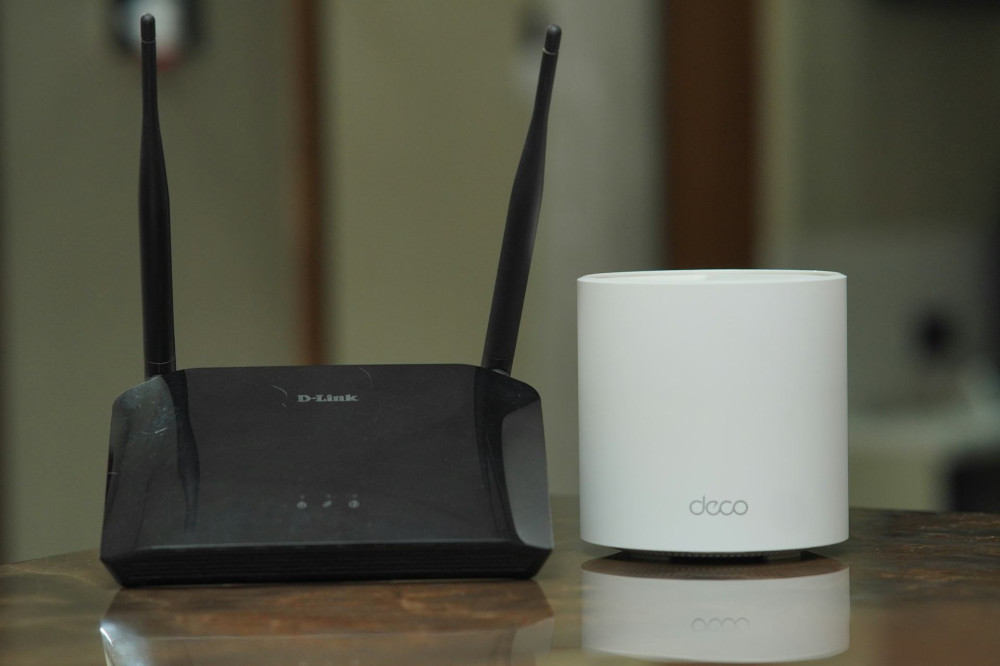
Routers and modems don’t last forever. Older models may struggle to handle modern internet speeds or multiple connected devices. If your router is more than five years old, it might be time for an upgrade.
Solution:
- Check if your router supports the latest Wi-Fi standards (Wi-Fi 5 or Wi-Fi 6).
- Contact your internet service provider (ISP); many offer free or discounted upgrades.
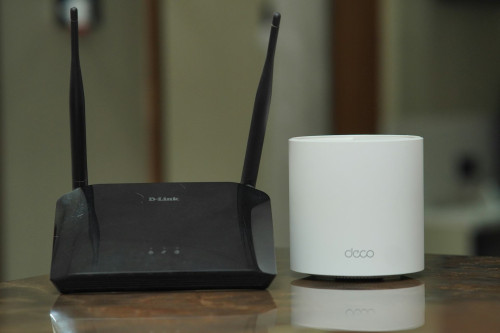
- For larger homes, consider a mesh Wi-Fi system to eliminate dead zones and improve coverage.
3. Too Many Devices on the Same Network
Today’s households often have dozens of connected devices—laptops, smartphones, smart TVs, game consoles, and even smart appliances. Each one uses a portion of your bandwidth, which can slow down the entire network.
Solution:
- Disconnect devices you’re not using.
- Use your router’s Quality of Service (QoS) settings to prioritize important devices or applications.
- If your household has heavy internet usage, upgrading to a faster plan may be necessary.
4. Interference from Neighboring Networks
In densely populated areas, multiple Wi-Fi networks can overlap and interfere with each other, especially on the 2.4 GHz band. This is common in apartment buildings or neighborhoods with many nearby routers.
Solution:
- Log into your router’s settings and change the Wi-Fi channel.
- Many modern routers can automatically select the least congested channel.
- Switch to the 5 GHz band, which typically experiences less interference and offers faster speeds over shorter distances.
5. Cable and Connection Issues
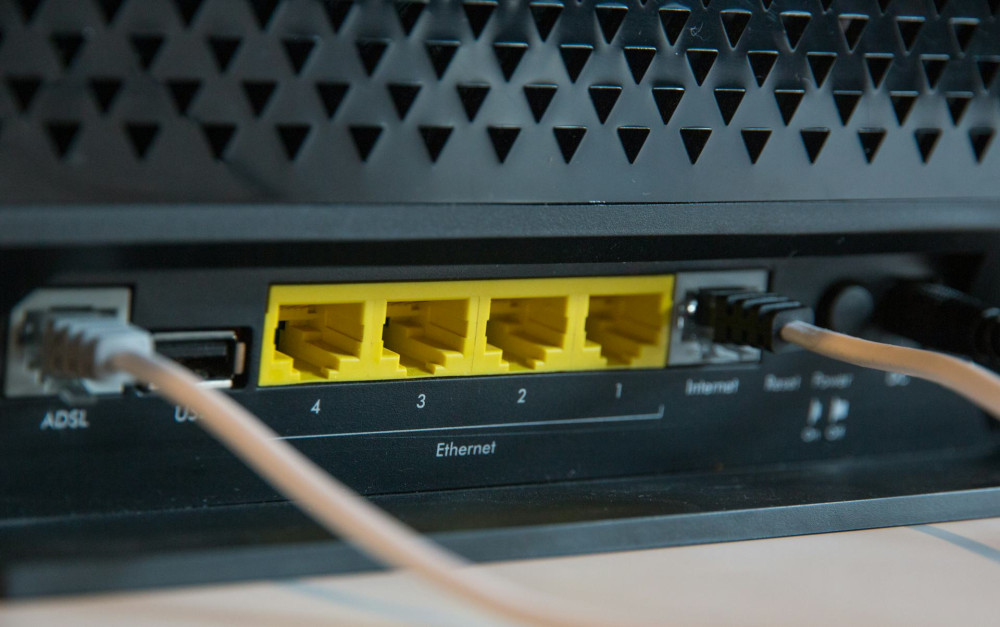
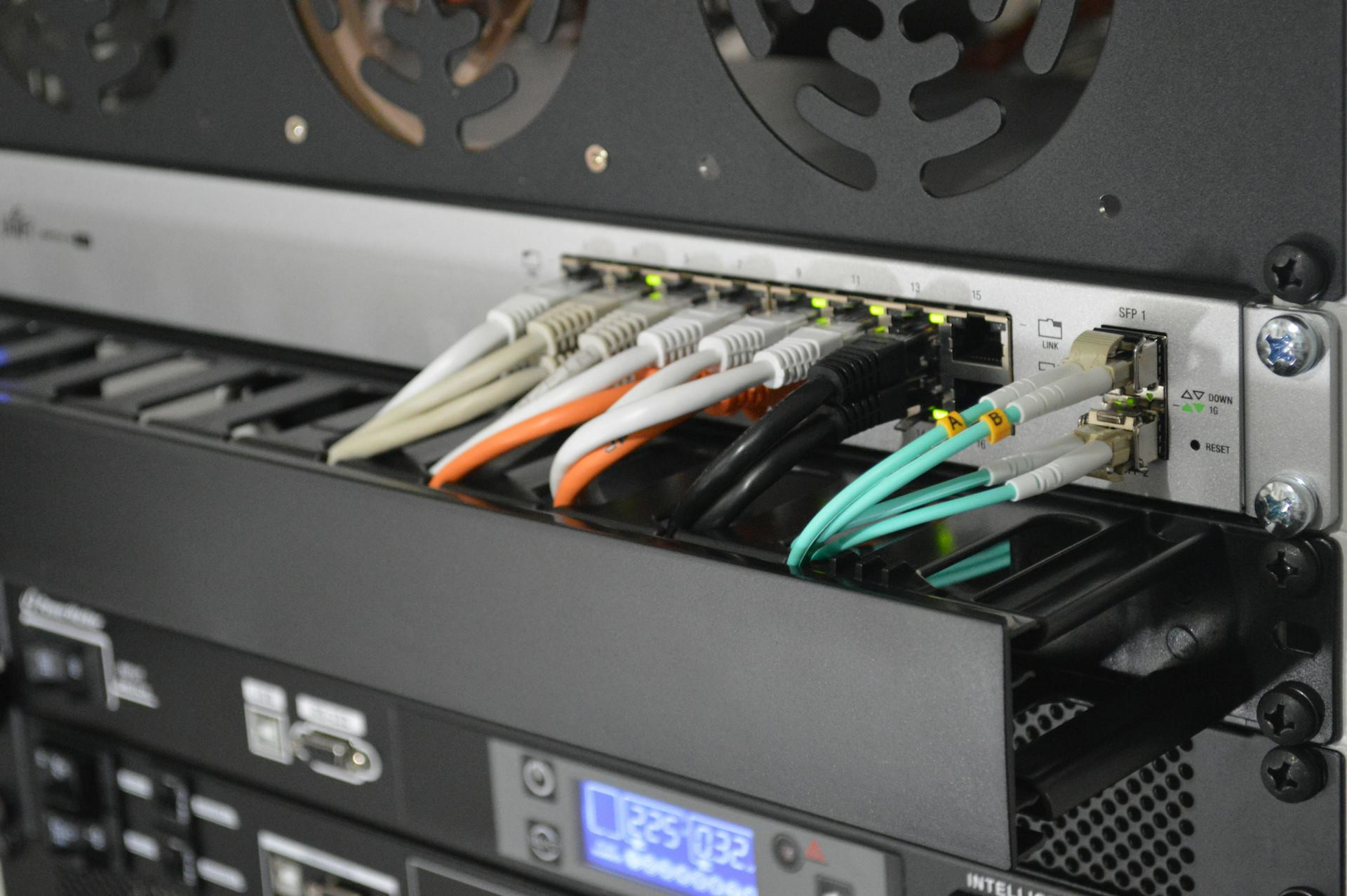
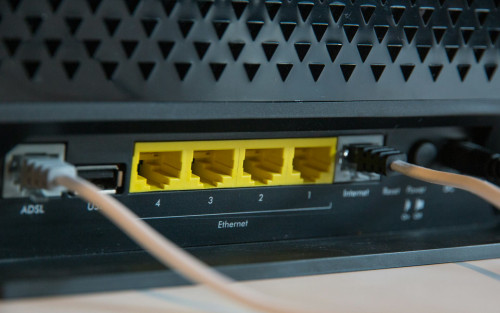
While Wi-Fi gets most of the attention, physical connections can also cause instability. Loose or damaged cables between your modem, router, and wall outlet can lead to dropped connections.
Solution:
- Check that all cables are securely connected and undamaged.
- Use high-quality Ethernet cables (CAT 6 or higher) for wired connections.
- If you have a separate modem, restart both the modem and router periodically to clear temporary issues.
6. Software and Firmware Updates
Just like computers and smartphones, routers need regular updates to perform well and stay secure. Outdated firmware can cause slow speeds, connection drops, or even security vulnerabilities.
Solution:
- Log into your router’s admin panel and check for firmware updates.
- Enable automatic updates if your router supports them.
- Restart your router occasionally to refresh its memory and clear minor glitches.
7. Internet Service Provider Issues
If you’ve tried everything and your connection is still unstable, the problem might be outside your home. Temporary outages, network congestion, or line issues from your ISP can all cause instability.
Solution:
- Check your ISP’s website or app for outage reports in your area.
- Test your connection by plugging a computer directly into the modem—if it’s still unstable, the issue is likely with your provider.
- Contact your ISP’s support team and ask them to run a line test or send a technician if needed.
8. When All Else Fails – Get Professional Help
If you’ve exhausted all options and your network is still unreliable, it may be time to call in a professional. A network technician can measure signal strength, identify interference sources, and optimize your setup for maximum performance.
While it may seem like an extra expense, professional help can save you time, frustration, and ensure a stable network for years to come.
Læs også:

A Stable Network Starts with Small Adjustments
Most home network issues can be solved with a few simple changes—better placement, updated equipment, or a quick settings tweak. Start with the basics and work your way up. A stable connection isn’t about luck; it’s about understanding how your equipment, environment, and internet service work together.
Once you’ve made these adjustments, you’ll notice smoother video calls, faster streaming, and a more reliable online experience throughout your home.
Læs også: